Responsive Ads Here
Showing posts with label Android. Show all posts

Sunday, February 18, 2018

How To Track Your Phone By Android Device Manager (ADM)

Android Device Manager, in other names ADM is a function of finding any android device like android smartphone, android tablet or android tv. If your device is android based and somehow you lost it, you can find it. Google made Android Device Manager for making more secure to the android devices users.

Android Device Manager

Now, a question may rise on your mind, how does work android device manager? It’s not so simple. Google has a lot of satellites on the sky for serving their connection worldwide. And we all know the most communication service serves by Google. We know GPS. GPS is Global Positioning System. It’s a Google service. Android Device Manager is linked with the GPS. So Android Device Manger helps for finding the losted device using the GPS. Actually that, when Google makes any android product, they set up a GPS cheap with the device.

So, now you want to know how to track a phone by Android Device Manager? Follow the steps.

Step 1

Go to the official website for android finding https://www.google.com/android/find

Step 2

Log in to your Gmail account or Google account. If you have gmail account, that’s will be your Google account.

Step 3

Now, if your phone is active and it is connected to the internet service, you will find the phone in the website. From this website you will be able to control your phone basic tasks. Here you will find three options.

  • Ring
  • Lock
  • Erase

Choose “Ring” to make a call to the phone. If your phone may exist nearby you think, you can choose this. If you think your phone has stolen by someone bad, you can lock it by choosing “Lock”. Thriedly, you can erase you all data by choosing “Erase”.

Attention!

Some pre-requisite conditions are must for executing the above three steps to know the location of the device. If you don’t have the pre-settings on your phone, your phone can not be recovered. Here these,

  • The phone is active
  • The phone is connected to the internet
  • Location reporting is enabled on your phone
  • The device is singed in with your google account

If these 4 settings are set up on your phone, then you can obviously know your phone location. If you like this article please share it on Facebook and Twitter.

Sunday, December 18, 2016

Enable Internet Tethering On Your SmartPhone - Step By Step

Sometimes, we need to share our phone internet with other devices. It's called internet tethering. Today I’m going to show you the process of turning a smartphone into wifi-hotspot. By making your phone hotspot you will be able to share your mobile internet with other devices. You don’t need any software or hotspot app to use to perform this action. A default internet sharing option has been built by the manufacturer in almost all the smartphones. So you just have to use the option.
internet tethering

For that, go to the settings menu and find “tethering” option. Tap it to turn on. When you turned it on your smartphone will turn into a portable Wi-Fi hotspot device. Once it turned, any device containing wi-fi connection will be connected to share the mobile internet connection. Almost all the smartphones support this including iPhone 4, iPhone 5, iPhone 6, iPhone 6s  and upcoming iPhone 7 and iPhone 8, Windows Phone, Android Smartphones, Firefox and BlackBerry phones.

#How To Use Phone As A WiFi- Hotspot

This feature is not dependent on operating systems. It can be done in any one. But the activation steps may be different from one to another. It just means share the data connection in multiple devices.


#1. How To Enable Internet Tethering On Android

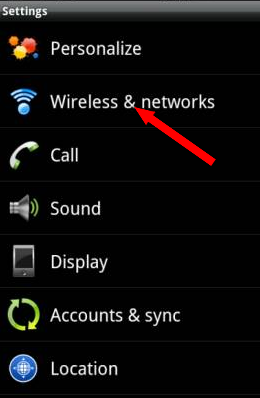
1. For android, you’ve to go to settings and tap the more option under “Wireless & Networks.
internet tethering 

internet tethering

2. Tap again “Tethering & portable hotspot” and check mark in the box placed in right. If not, mark it and your android phone will turn into a Portable WiFi- Hotspot.

 internet tethering

Then you need to configure your newly created WiFi-Hotspot. To configure, click on “Configure Wi-Fi hotspot”. Set a password here. Now check from any Wi-Fi featured device. To check open the networks list of your another device and choose the newly created android device Wi-Fi hotspot. You'll be asked for a password. Enter the password what is given in the android phone and your device will connect.

#2. How To Enable Internet Tethering On iPhone

  1. Tap cellular from Settings.

  2. Tap Personal Hotspot and then turn it on.

Password setup is needed also to this phone like the previous android. To set password tap Wi-Fi password on the Personal Hotspot option.

If you don’t find the “Personal Hotspot” option in iPhone, ask your carrier so that you can use it.

#3. How To Enable Internet Tethering On Windows Phone

  1. Open the App list and find Settings.

  2. Then tap in “Internet Sharing”.

  3. Find share over and tap Wi-Fi.

  4. Set sharing to On.


    Warning!
    1. You should mind it your data volume should not be exceeded.
    1. After finishing the work in other devices, you’re recommended to stop the tethering process to save your phone’s battery life.